
In this article
Website speed optimization is the work of making your pages load quickly and respond smoothly, especially on phones. It’s worth doing, but it’s easy to waste time on the wrong fixes. Many site owners chase a perfect score when one large image or a heavy script is causing most of the problem.
This guide shows how to find what’s really slowing your site, which nine fixes usually matter most, and when to stop. You can start right now: run your page through our free page speed checker and keep the result next to you as you read.
What is website speed optimization?
Website speed optimization means reducing the time between someone tapping a link and being able to use your page. That covers three things people notice:
- Loading: how quickly the main content appears.
- Responding: how quickly the page reacts when someone taps a button.
- Stability: whether the layout stays still while the page loads.
Good website speed optimization isn’t about a single trick. It’s a process of measuring, fixing the biggest problem, and measuring again.
Does website speed affect Google rankings?
Yes, but it’s only part of the picture. Google’s page experience documentation says Core Web Vitals are used by its ranking systems. The same page is clear about the limits:
- Good scores in Search Console or other tools don’t guarantee top rankings.
- Google always tries to show the most relevant content, even when the page experience isn’t perfect.
- Chasing a perfect score purely for SEO may not be the best use of your time.
So treat website speed optimization as something you do for visitors first. A faster page is easier to use, and any search benefit comes on top of that. Helpful content still comes first, as we explain in our guide to getting cited in Google’s AI answers.
How fast are most websites?
If your site feels slow on mobile, you have plenty of company. In July 2025 data from the HTTP Archive Web Almanac, 48% of sites had good Core Web Vitals on mobile, compared with 56% on desktop.
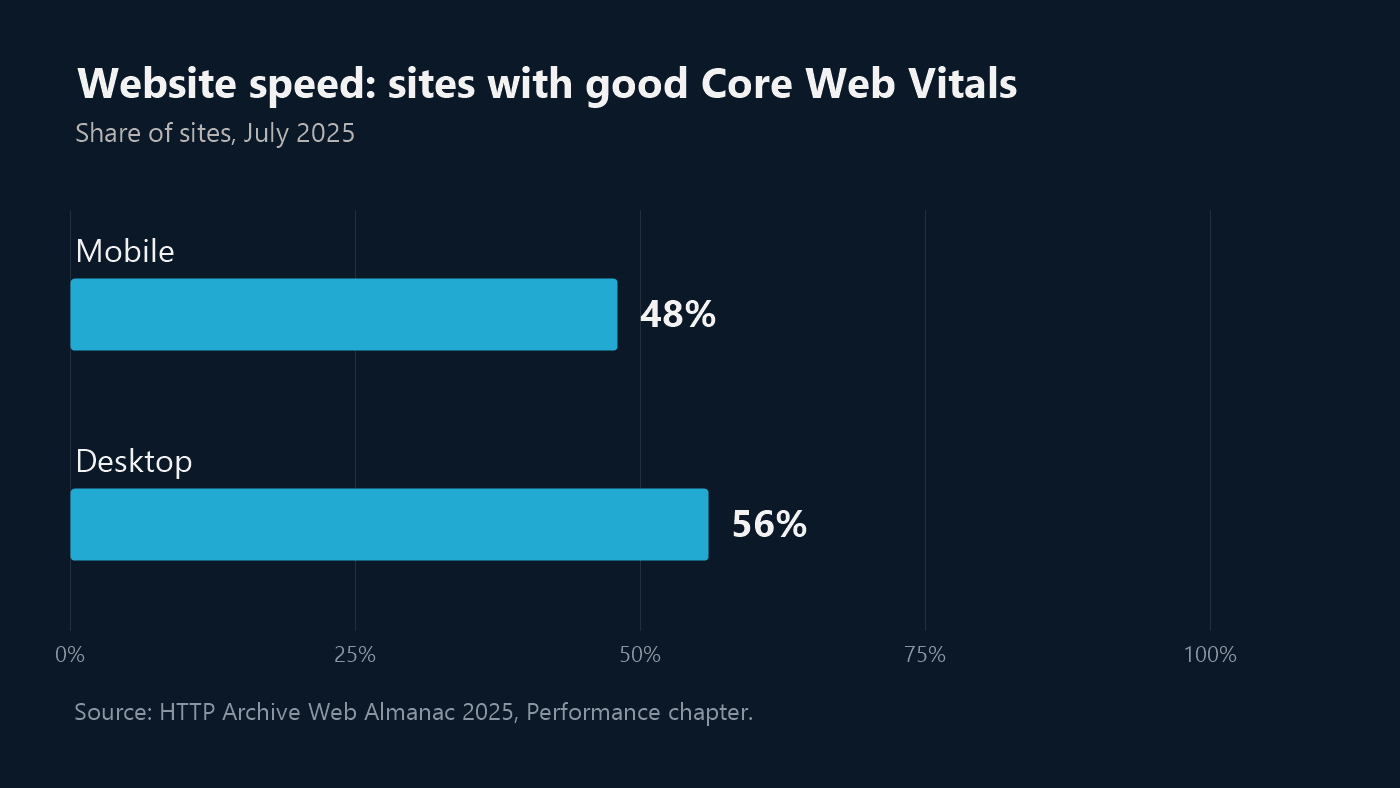
This is a global figure, and your market may differ. It does show why website speed optimization can be worthwhile: fixing the basics may put your site ahead of many others on mobile.
The website speed numbers that matter
Website speed optimization is much easier once you know these numbers. Three of them are Google’s Core Web Vitals, and the others help you find out why a page is slow.
| Metric | What it tells you | Good result |
|---|---|---|
| Largest Contentful Paint (LCP) | When the main content appears | 2.5 seconds or less |
| Interaction to Next Paint (INP) | How quickly the page responds to people | 200 ms or less |
| Cumulative Layout Shift (CLS) | How much the layout jumps | 0.1 or less |
| Time to First Byte (TTFB) | How quickly your server starts responding | 0.8 seconds or less |
| Total Blocking Time (TBT) | How long scripts keep the page busy, in a lab test | 200 ms or less on mobile |
One detail often confuses people. Lighthouse tools run a lab test without a real visitor, so they can’t measure INP. They report Total Blocking Time as the closest signal. For real-visitor data, check the Core Web Vitals report in Google Search Console, if your site has enough traffic to appear there.
How to find what’s slowing your website
Good website speed optimization starts with evidence. Before you change anything, follow these steps:
- Test your most important pages. Start with your top service or product page, not just the homepage.
- Look at the worst metric first. A slow LCP needs different fixes from a poor CLS.
- Write down your starting numbers. Without them, you won’t know whether a change helped.
- Test more than once. Results can change between runs, so look at the trend.
Our page speed checker shows your mobile speed score and ranks the fixes by impact. For a wider view that includes SEO and accessibility, use the SEO audit tool.
9 website speed optimization fixes that make a real difference
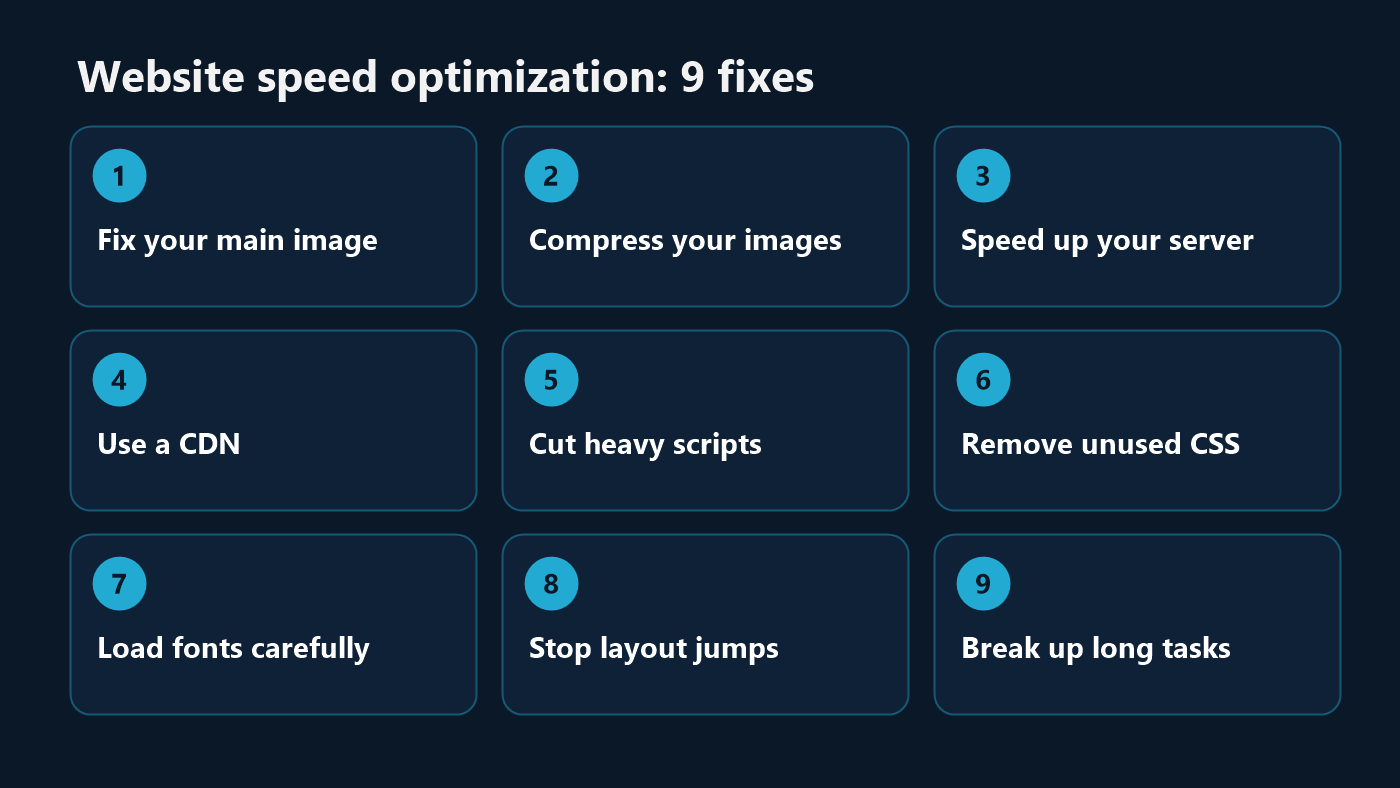
These fixes are a practical starting list for website speed optimization, roughly in the order we’d check them. Your own test results should decide what comes first.
1. Fix your main image first
Images are the most common LCP element, on 76% of mobile pages in the Web Almanac data. So start with the largest image at the top of the page.
- Never lazy-load it. Google’s LCP guide says this always causes unnecessary delay, yet about 16 to 17% of pages still do it.
- Add
fetchpriority="high"to that image, but only on one or two images per page. - Make sure the image is in the page’s HTML, so the browser can find it straight away.
2. Compress and resize your images
Image work is often the quickest win in website speed optimization. A photo straight from a camera or design tool is often far larger than a phone screen needs. Resize images to the size they actually display at, and compress them. Modern formats such as WebP and AVIF usually give smaller files. On WordPress, an image optimization plugin can handle much of this for you.
3. Speed up your server response
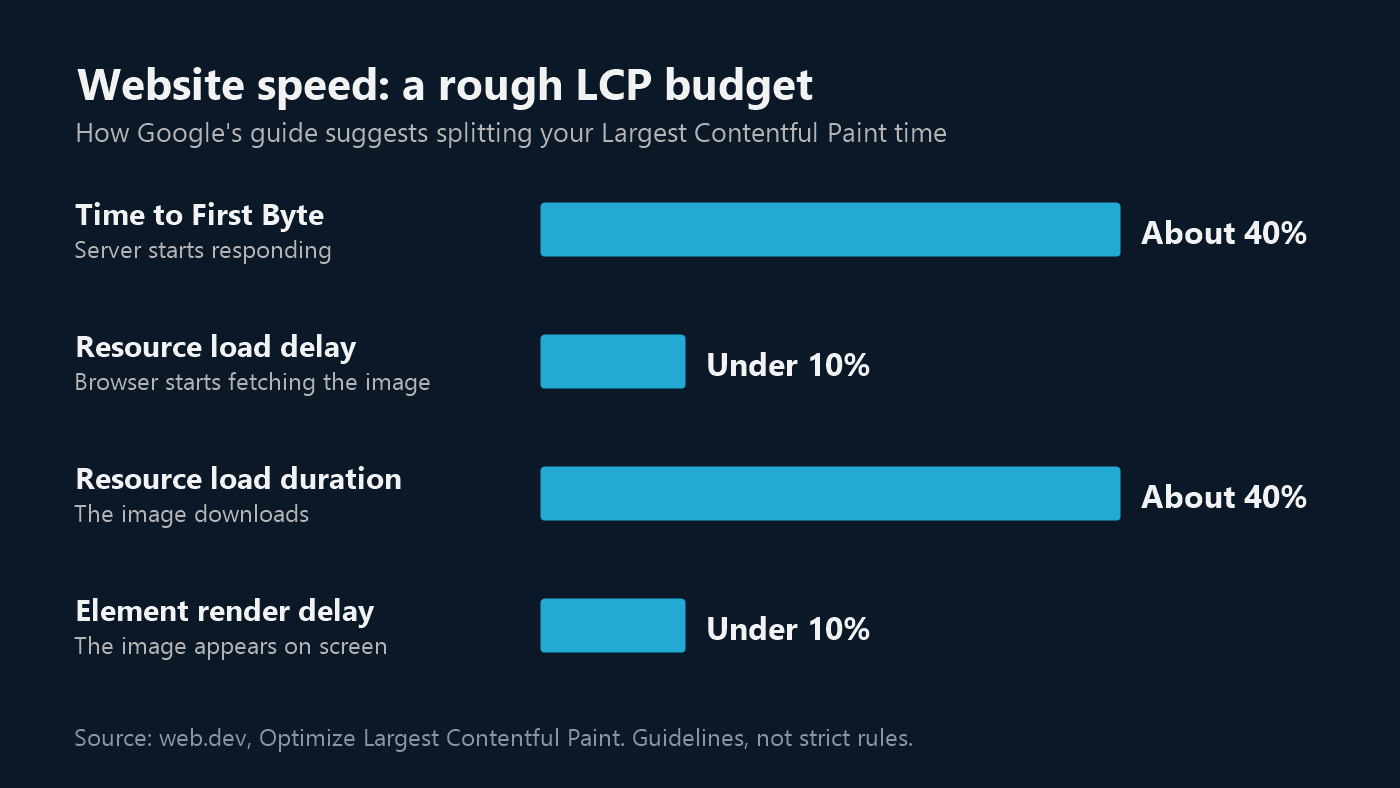
Google’s guide suggests that server time should take up about 40% of your LCP target, and warns that a high TTFB can make a good LCP very hard to reach. If your TTFB is poor, no amount of image work will fully solve the problem.
- Turn on page caching, so your server doesn’t rebuild each page for every visitor.
- Review your hosting plan if the server is slow even with caching on.
- Clean up slow database queries and plugins that add heavy work to each page.
4. Use a CDN if your visitors are far away
Distance adds delay. If your server is in one country and your customers are in another, a content delivery network (CDN) can serve files from somewhere closer. Website speed optimization for an international audience often starts here. Check that your CDN is really caching your pages, since some settings can stop cached copies from being used.
5. Cut heavy and third-party scripts
JavaScript is a common reason for a high Total Blocking Time, so it’s a key part of website speed optimization. Every chat widget, tracking tag and slider adds work for the phone.
- List every script on the page and remove what you no longer use.
- Load non-essential scripts later, after the main content.
- Remove plugins that add features you don’t need.
6. Remove unused CSS
Page builders and large themes can load styles that a page never uses. Render-blocking CSS delays the first thing a visitor sees, so remove or defer what isn’t needed. Test carefully afterwards, because removing the wrong CSS can break your layout.
7. Load fonts carefully
Custom fonts can delay text and cause the layout to jump when they appear. Use fewer font families and weights, preload the one or two fonts that matter most, and choose a fallback font of a similar size. Google’s CLS guide covers the details.
8. Stop your layout from jumping
Have you ever tapped a button just as the page moved? That’s layout shift. In website speed optimization, it’s often one of the easier problems to fix:
- Add width and height to images, or reserve space with CSS.
- Reserve space for ads, embeds and iframes.
- Avoid adding banners above existing content without a user action.
9. Break up long tasks
When a phone is busy running a long script, it can’t respond to taps. That’s what INP measures. Your developer can split long tasks into smaller ones, defer non-essential work, and keep the page’s HTML simple. Google’s INP guide explains these techniques.
Which fix matches which problem?
Your test result tells you where to start. Use this table to match your worst metric to the fixes most likely to help, so your website speed optimization work goes to the right place.
| What your test shows | Start with |
|---|---|
| Slow LCP, with a large image at the top | Fixes 1 and 2: your main image and image files |
| Slow LCP and a slow TTFB | Fixes 3 and 4: your server, caching and CDN |
| High Total Blocking Time or poor INP | Fixes 5 and 9: scripts and long tasks |
| Slow first paint, with a good server response | Fixes 6 and 7: CSS and fonts |
| Poor CLS | Fixes 7 and 8: fonts and reserved space |
Website speed optimization for WordPress
WordPress powers many business websites, and it has a few common problems of its own. Keep these points in mind:
- Fewer plugins are usually better: what matters most is how much work each one adds, so test after you add or remove one.
- Use one caching plugin: running two can cause conflicts. Your host may already include one.
- Check your top image: make sure no theme or plugin setting is lazy-loading it.
- Watch your page builder: heavy sections, sliders and animations add up, so simplify the top of each page first.
- Keep PHP up to date: this matters for security as well, as our PHP2Shell guide explains.
Always test big changes on a staging copy or after a fresh backup. A faster site that’s broken isn’t an improvement.
Common website speed optimization mistakes
- Chasing 100/100: Google itself says a perfect score may not be the best use of your time.
- Testing only the homepage: your best-selling pages may be much slower.
- Testing only on desktop: most problems show up on a mid-range phone.
- Lazy-loading everything: this slows down your main image.
- Stacking optimization plugins: several plugins doing the same job can cause errors and slow your site.
- Making many changes at once: if something breaks, you won’t know which change caused it.
- Stopping after one round: new plugins, images and scripts can undo your work, so test again every few months.
Can you do website speed optimization yourself?
Often, yes, at least for the first round. Many of the biggest gains don’t need any code. Here’s a practical way to split the work:
- Most site owners can handle: compressing images, removing unused plugins, turning on your host’s caching and running tests.
- It’s safer with a developer: removing unused CSS, delaying scripts, changing how fonts load and fixing layout shifts in a theme.
- It usually needs a developer: breaking up long tasks, improving slow database queries and rebuilding heavy page templates.
A good rule is to stop when a change could break how your site works and you can’t easily undo it. Website speed optimization should never put your forms, checkout or booking system at risk. If nobody on your team owns this work, our support team can take it over.
How to check that your changes worked
Finish every round of website speed optimization by checking the results properly. Otherwise, you can’t tell which changes were worth the effort.
- Clear your caches: otherwise, you may be testing an old copy of the page.
- Test the same page in the same tool: comparing results from different tools can mislead you.
- Run a few tests: one result can be unusually good or bad.
- Use the site yourself: open it on a real phone and try your forms, menus and buttons.
- Check real-visitor data later: the Core Web Vitals report in Search Console updates more slowly than a lab test.
Should you optimize or rebuild?
Website speed optimization usually comes first, because it costs less and often solves the problem. Sometimes, though, a rebuild makes more sense.
| Your situation | Usually the better choice |
|---|---|
| A few large images or unused plugins are the main problem | Optimize |
| The server is slow, but the site is well built | Optimize, or change hosting |
| Scores stay poor after the main fixes | Review the theme and page builder |
| The site is old, hard to edit and also needs a redesign | Consider a rebuild |
A professional web development team can tell you which applies to your site. If you’re thinking about a rebuild, the website cost calculator gives you an instant estimate. Our article on why a well-developed website matters covers what to look for.
A simple 30-day website speed optimization plan
| Week | Focus | What to finish |
|---|---|---|
| Week 1 | Measure | Test your five most important pages. Note each page’s scores and worst metric. |
| Week 2 | Images | Fix the main image on each page. Compress and resize the rest. |
| Week 3 | Server and caching | Set up caching, check your CDN and review your hosting. |
| Week 4 | Scripts and layout | Remove unused scripts and plugins. Reserve space for images and ads. Test again. |
After that, a quick check every few months will catch new problems before your visitors notice them. That’s how website speed optimization stays useful over time.
Frequently asked questions
What is a good website speed?
Aim for an LCP of 2.5 seconds or less, an INP of 200 ms or less and a CLS of 0.1 or less. In Lighthouse, a performance score of 90 to 100 is rated good.
Do I need a score of 100?
No. A perfect score isn’t required for good rankings or a good experience. Focus on your worst metrics and on what real visitors experience.
Why is my website slow on mobile but fine on desktop?
Phones usually have less processing power and slower connections. Large images and heavy scripts hurt much more on a phone, so test on mobile first.
Will website speed optimization improve my rankings?
It may help, but there’s no guarantee. Google uses Core Web Vitals in its ranking systems, while relevant, helpful content remains more important.
How long does website speed optimization take?
Simple fixes such as compressing images can take a few hours. Deeper work on scripts, themes or hosting takes longer. Real-visitor data in Search Console can also take several weeks to reflect a change.
Will better hosting fix a slow website?
Only if your server is the problem. Check your TTFB first. If it’s slow even with caching on, better hosting can help a lot. If your TTFB is fine, the delay is more likely to come from images, scripts or your theme, so a new host won’t change much.
How do I check my website speed for free?
Use our free page speed checker. It tests your page on mobile with Google Lighthouse and gives you a speed score straight away. You’ll find more options on our free tools page.
Sources
- Google Search Central: Understanding page experience
- web.dev: Optimize Largest Contentful Paint
- web.dev: Optimize Interaction to Next Paint
- web.dev: Optimize Cumulative Layout Shift
- web.dev: Time to First Byte
- Chrome for Developers: Lighthouse performance scoring
- HTTP Archive Web Almanac 2025: Performance
Need help with website speed optimization?
ZeeDev Innovations can find what’s slowing your site and fix it, from images and hosting to code. Start with the free speed check, see our website support and management service, or book a free consultation to talk it through.